Updates Tab Tumblr: Your Complete Guide for 2026
You open Tumblr and see a notification badge showing new activity. But when you tap it, nothing new appears. Sound familiar? You are not alone. The Tumblr Updates Tab helps users track interactions with their blogs. However, its features can sometimes be confusing.
This guide explains what the Tumblr Updates Tab does, where to find it, and how to use it. You will also learn how to manage notifications and troubleshoot common problems.
What Is the Updates Tab on Tumblr?
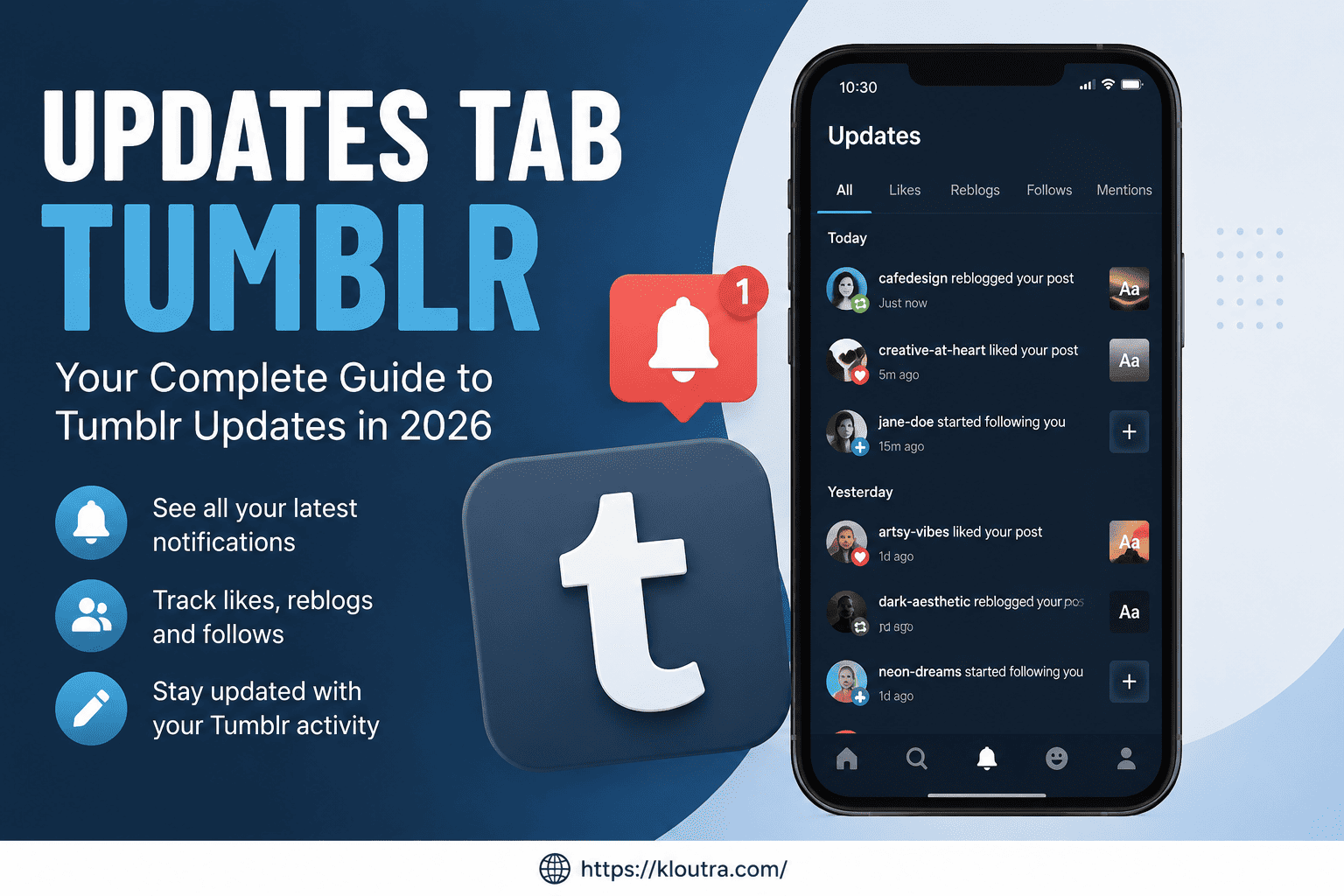
The Tumblr Updates Tab is where you can view activity related to your blog. Tumblr officially calls this section “Activity.” It collects different interactions between Tumblr users and your posts. These include likes, reblogs, follows, comments, and mentions. Think of it as an activity feed for your blog. You can check who interacted with your content and what happened.
Why Tumblr Calls It “Activity” Instead of “Updates”
Tumblr uses the name “Activity” for this feature. However, many users search for it as the updates tab. Both terms generally refer to the same section. It helps you understand how people interact with your blog. You may also see the word “notifications” when exploring related settings. However, notifications and Activity are not exactly the same. Activity displays interactions with your blog. Notification settings control which alerts you receive about those interactions.
Where to Find the Tumblr Updates Tab
On the Tumblr website, look for the lightning-bolt Activity icon in your dashboard’s top bar. A notification badge may appear above this icon when new activity arrives. Click the icon to view recent interactions with your blog. You can also select a different blog from the dropdown menu. This helps you check activity across your Tumblr blogs.
For a complete activity view, select “See Everything” at the bottom of the activity pop-up. On mobile, look for the Activity section in the Tumblr app. Its exact layout may vary depending on your device and app version. You can find more details in Tumblr’s official Web Notifications guide.
How the Tumblr Updates Tab Works
The Activity section displays interactions between other Tumblr users and your blog. It organizes these interactions in a chronological list. Each entry explains what happened and identifies the related account. For example, you might see that someone liked your post or started following your blog.
Types of Activity You Can See
Tumblr’s Activity section includes several types of interactions:
- Likes: Someone liked one of your posts.
- Reblogs: Someone shared your post on their blog.
- New followers: Someone started following your blog.
- Comments: Someone commented on one of your posts.
- Mentions: Someone mentioned your blog in a post.
- Asks: Someone sent your blog a question.
- Submissions: Someone submitted content to your blog.
- Gifts and badges: You can see related gifts and earned badges.
- Polls: You can find activity related to polls you voted in.
The available activity types help you understand how people engage with your content.
Can You Filter Activity on Tumblr?
Yes. Tumblr allows users to filter activity by interaction type. You can also choose which blog’s activity you want to view. This makes it easier to find specific interactions without scrolling through everything.
On the web, the full Activity page provides additional filters and an interactive chart. It also highlights your top post and biggest fans. You can learn more through Tumblr’s official Activity guide.
Advantages and Disadvantages of the Tumblr Updates Tab
The Activity section makes blog interactions easier to follow. However, it also has some limitations.
Advantages
- Activity in one place: You can view different interactions without checking each post separately.
- Easy engagement tracking: You can see who likes, reblogs, or comments on your posts.
- Activity filters: You can filter interactions by type and select individual blogs.
- Better blog management: You can monitor activity across your Tumblr blogs.
- Quick notifications: Notification badges help you notice new blog activity.
Disadvantages
- Notification mismatches: Sometimes, a badge appears even when no visible notification exists.
- Limited control over alerts: You may need to adjust several notification settings to manage alerts.
- No complete analytics replacement: Activity shows interactions, but it does not replace detailed social media analytics.
- Different interface layouts: The Activity section may look different across devices and app versions.
How to Manage Your Tumblr Blog Notifications
You can control which Tumblr notifications you receive. This helps reduce unnecessary alerts when your blog gets busy.
Turning Notifications On or Off
On the Tumblr website, follow these steps:
- Open Tumblr and sign in to your account.
- Click “Settings” in the left menu.
- Select “Notifications” from the settings menu.
- Choose the blog you want to manage.
- Adjust the available notification settings.
On Android and iOS, the steps are slightly different.
Open the Tumblr app and go to your account settings. Find the Notifications section and adjust the available options. You can also control who sends you notification alerts. For example, you can choose notifications from people you follow or everyone. Tumblr provides separate instructions for Android push notifications and iOS push notifications.
Managing Unwanted Activity Notifications
Sometimes, a popular post receives too many likes, reblogs, or comments. These alerts can become distracting. Tumblr allows you to mute notifications and activity related to individual posts. You can choose temporary or permanent muting options. This helps you manage busy posts without changing every notification setting.
Understanding Notification Badges
A notification badge usually appears when new activity is available. However, Tumblr also documents an issue called ghost notifications. These notifications can come from terminated, deleted, or spam accounts. As a result, a badge may appear without a visible notification. This explains why your notification count sometimes does not match your actual activity.
Common Problems With the Tumblr Updates Tab and Their Solutions
Sometimes, the Activity section does not work as expected. Here are some common problems and practical steps.
The Notification Badge Won’t Disappear
A badge may remain visible even when you cannot find new activity. Tumblr identifies ghost notifications as one possible reason. Check your Activity section and look for any visible interactions. If the badge remains, consult Tumblr’s Web Notifications help page.
Updates Are Missing or Delayed
Sometimes, an interaction may not appear immediately. Check your internet connection and refresh the page. On mobile, make sure you are using an updated version of the Tumblr app. You can also check Tumblr’s Known Issues page for reported problems.
You’re Not Receiving Notifications for New Followers
Start by checking your notification settings. Make sure follower notifications are enabled for the correct blog. Also, review your notification preferences. You may have limited alerts to people you follow. If the problem continues, contact Tumblr Support for further assistance.
Frequently Asked Questions
What Is the Updates Tab on Tumblr?
The Updates Tab shows interactions with your Tumblr blog. It includes likes, reblogs, follows, comments, and mentions. Tumblr officially calls this section Activity.
Why Does My Tumblr Updates Tab Show a Notification With Nothing New?
This can happen because of ghost notifications. Deleted, terminated, or spam accounts may cause notification badges to appear without visible activity.
How Do I Turn Off Tumblr Update Notifications?
Open your account settings and find the Notifications section. You can adjust available notification types for your blogs. The exact steps depend on your device.
Is the Tumblr Updates Tab the Same as Activity?
Yes. The Updates Tab generally refers to Tumblr’s Activity section. Both terms describe the area showing interactions with your blog.
Can I Filter Activity on Tumblr?
Yes. Tumblr lets you filter activity by interaction type. You can also select which blog’s activity you want to view.
Conclusion
The Tumblr Updates Tab helps you understand how people interact with your blog. It brings likes, reblogs, follows, comments, and other activity together. Although Tumblr officially calls it Activity, many users still search for the updates tab. Understanding its features makes blog management easier.
You can also filter interactions and adjust notification settings. If a notification badge behaves strangely, Tumblr’s help resources can explain possible causes. With these features, you can monitor your blog activity and stay informed about new interactions.