How to Use WeTransfer to Send Large Files
Introduction
Sending large photos, videos, and documents through email can be difficult because of file size limits. WeTransfer makes large file sharing easier by letting you upload files and send them through a download link. This guide explains how to use WeTransfer to send large files, create shareable links, and download received files.
What Is WeTransfer?
WeTransfer is an online service for sending and sharing files. It helps users send large files without regular email attachments. You can upload photos, videos, documents, ZIP files, and other file types. Recipients can download shared files without creating a WeTransfer account.
How Does WeTransfer Work?
WeTransfer uploads your selected files to its servers first. You can then send them through email or a shareable link. With email transfers, recipients receive a download link in their inbox. With link transfers, you copy the link and share it yourself.
The recipient opens the link and downloads the files through their browser. They do not need a WeTransfer account to download files. Your original files also remain safely stored on your device.
How WeTransfer Handles Large Files
WeTransfer uploads files separately from your email message. This means the actual files do not become email attachments. Instead, the recipient gets a download link to access them.
WeTransfer keeps files in their original format during transfers. It does not re-encode or compress files during sharing. This helps preserve the original quality of photos, videos, documents, and other files.
WeTransfer Download Links Explained
A WeTransfer download link is a unique URL for your uploaded files. You can share this link through email, chat, or other platforms. The recipient opens the link and downloads the available files.
Link transfers are useful when several people need the same files. You can share one link instead of sending separate emails. WeTransfer also provides security options for supported transfers, including passwords and access controls.
How to Use WeTransfer to Send Large Files
Using WeTransfer to send large files takes only a few simple steps. You can upload files from your computer or mobile device. Then, choose email transfer or create a shareable link.
Upload Files to WeTransfer
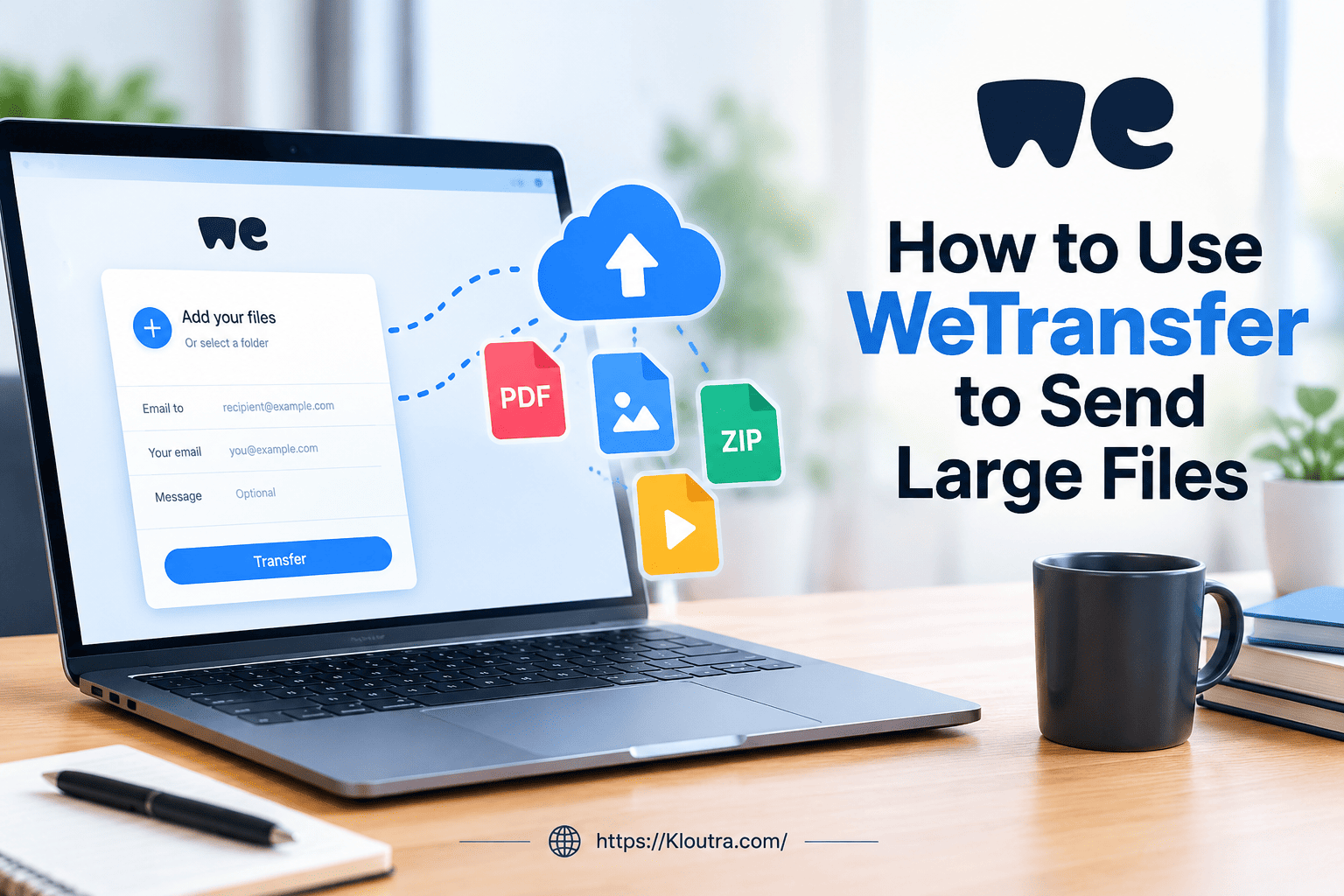
First, open WeTransfer in your web browser. Click the + button to add your files. You can also drag files into the upload area. Select the photos, videos, documents, or other files you want to send.
WeTransfer uploads a copy of your selected files to its servers. Your original files stay on your device. You can also upload multiple files in one transfer.
Add Recipient and Sender Details
After adding your files, choose how you want to send them. You can send the transfer by email. You can also create a shareable download link.
For an email transfer, enter your email address first. Then, enter the recipient’s email address. WeTransfer sends the download link directly to the recipient.
You can also add multiple recipients to the transfer. Recipients cannot see each other’s email addresses. Each recipient receives the transfer separately.
Add a Message and Send the Transfer
You can add a title and message before sending your files. A clear title helps recipients understand the transfer. The message can provide extra information about the files.
Next, choose Email transfer or Get a link. Then, click Transfer to start sending your files. If required, verify your email before completing the transfer.
For link transfers, WeTransfer creates a unique download link. You can copy and share this link anywhere you want.
How to Create a WeTransfer Shareable Link
A WeTransfer shareable link lets you send files without entering recipient emails. First, upload your files to WeTransfer. Then, choose the Get a link option before sending. WeTransfer creates a unique download link for your files.
Send Files With a Download Link
Open WeTransfer and add the files you want to share. After adding your files, choose Get a link. Click Transfer to start uploading your files.
After the upload finishes, WeTransfer gives you a shareable link. Copy the link and send it through email or chat. You can also share it through other platforms.
Recipients can open the link and download your files. They do not need a WeTransfer account to download them. The link lets you share the same transfer with multiple people.
Email Transfer vs Shareable Link
WeTransfer offers two main ways to share files. You can send files directly through email. You can also create a link and share it yourself.
With an email transfer, WeTransfer sends the download link automatically. You enter your email and the recipient’s email address. Each recipient receives the transfer separately.
With a shareable link, you receive the link after uploading. You decide where and with whom to share it. This works well when several people need the same files.
WeTransfer Features for File Sharing
WeTransfer includes several useful features for sharing files online. These features make file sharing simple and flexible.
| Feature | What It Does |
|---|---|
| File Upload | Upload files to WeTransfer for easy online sharing. |
| Email Transfer | Send files through a download link by email. |
| Shareable Link | Create a link and share it with others. |
| Password Protection | Add a password for extra file access protection. |
| Expiration | Set how long your transfer stays available online. |
WeTransfer lets you add passwords to protect your transfers. The recipient needs the password to access the files.
You can also control when a transfer expires. Free and Starter plans keep transfers online for up to three days. Higher plans offer more expiry options. For teams managing shared files and digital workflows, these SaaS tools for remote team productivity can also support remote collaboration.
How to Download Files From WeTransfer
Downloading files from WeTransfer is simple and does not require an account. You only need the transfer link from the sender.
Open the WeTransfer Download Link
Open the WeTransfer link you received from the sender. You can also click Get your files in the email. This opens the download page in your browser.
You can choose individual files or download everything together. The download starts directly through your web browser.
Save Files to Your Device
After downloading, your files are usually saved in your Downloads folder. The exact location depends on your device and browser.
On iPhone, downloaded files can appear in the Files app. Android devices usually save them in the Downloads folder.
Remember to download files before the transfer expires. Expired transfers may no longer be available for download.
Is WeTransfer Safe for Sending Large Files?
WeTransfer uses security measures to protect files during transfers. Files use encryption while moving between your device and WeTransfer. For more advanced file-sharing needs, you can also learn about advanced file transfer and how it works.
WeTransfer also encrypts stored files using AES-256 encryption. Access happens through unique transfer links.
Still, share your download links only with trusted people. Anyone with a public link may access its available files.
Password Protection and File Security
You can add a password to supported WeTransfer transfers. The password adds another layer of protection.
Passwords are case-sensitive and should be shared securely. WeTransfer cannot recover your password if you forget it.
WeTransfer also provides access controls for certain transfer types. These settings can help control who downloads your files.
Transfer Expiration and Access Control
WeTransfer transfers stay available for a limited period. Free and Starter transfers can remain online for up to three days.
Some paid plans provide longer availability and additional expiry options. You can change expiry settings from your transfer settings.
Once a transfer expires, downloading normally stops. Some eligible plans can recover expired transfers for limited periods.
What Files Can You Send With WeTransfer?
WeTransfer supports almost any common file type for sending and sharing. You can send photos, videos, documents, and audio files. You can also send ZIP files, design files, and other professional formats.
WeTransfer keeps your uploaded files in their original format. It does not compress or re-encode files during transfer. This helps maintain the original quality of your files.
WeTransfer File Size Limits and Plans
WeTransfer offers different plans with different transfer limits. The available limits depend on your current plan.
The free plan currently allows transfers up to 3 GB per transfer. Paid plans support larger transfers and provide additional features. WeTransfer file size information
Plan limits can change as WeTransfer updates its services. Check the current plan details before sending very large files.
Common WeTransfer Problems and Solutions
Sometimes WeTransfer uploads or downloads may not work correctly. A weak internet connection can cause transfer problems. Check your connection and try the transfer again.
Your browser can also cause download problems. Try updating your browser or using another supported browser.
Make sure your device has enough free storage space. Large downloads need enough space to complete successfully.
Browser extensions can sometimes interfere with WeTransfer. Try private browsing if the download does not work.
If a downloaded file will not open, check its file type. You may need suitable software to open that file. WeTransfer Help Center
Conclusion
WeTransfer makes sending large files simple, fast, and convenient. You can upload files and share them through email or links. Recipients can download files without creating a WeTransfer account.
You can also use passwords and expiry settings for better access control. These features help you manage shared files more easily.
If you need to send large photos, videos, documents, or ZIP files, WeTransfer offers a simple option. Follow the steps above to upload your files, create a transfer, and share them securely.
Disclaimer: This article is for informational purposes only. WeTransfer features, limits, pricing, and policies may change over time. Check the official WeTransfer website for the latest information.

Related Posts

Mobile App Development Tips for Beginners

Best Spotify Alternatives for Music Streaming