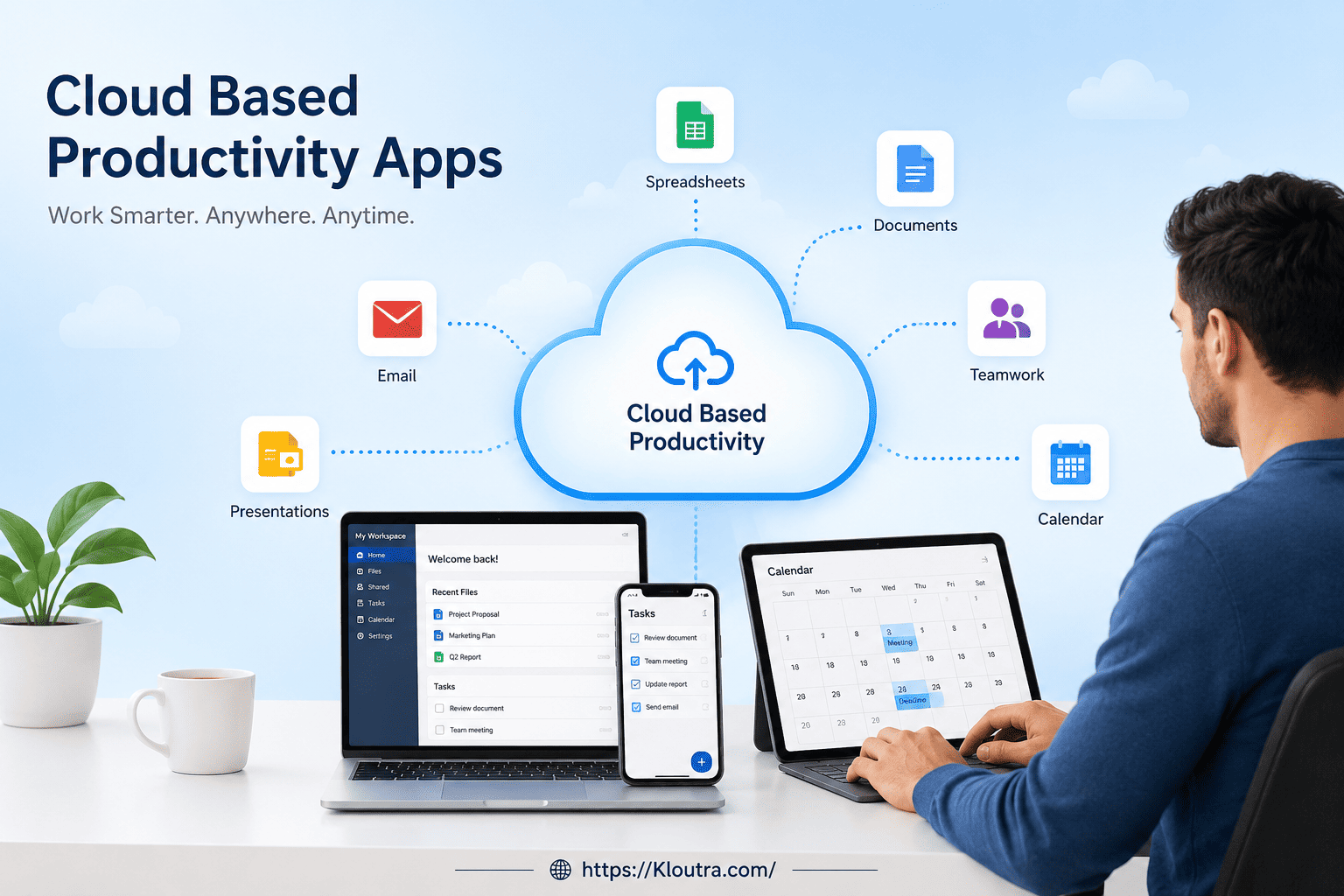
Cloud Based Productivity Apps: Benefits, Types & How They Work
Introduction
Cloud based productivity apps can turn a messy workday into a clear, organized routine. With so many tools available in 2026, choosing the right productivity app can feel harder than doing the work itself.
These apps help you manage tasks, documents, calendars, communication, and projects online. Instead of keeping everything on one computer, your information can stay available across supported devices and be shared with other people.
Whether you are a student, freelancer, professional, or team leader, the best tool depends on how you work. Some apps focus on tasks and projects, while others combine documents, meetings, calendars, and communication.
In this guide, we compare popular cloud productivity software and explain what each tool does best, who should use it, its advantages and disadvantages, and what to consider before choosing one.
What Are Cloud Based Productivity Apps?
Cloud based productivity apps are online tools that help you complete and organize everyday work. They usually store your information on remote servers, allowing you to access it through the internet.
For example, you might create a document on your laptop, edit it later from your phone, and share it with a coworker. Your work can stay synchronized instead of being tied to one device.
Common Features
Most cloud based productivity tools offer some combination of:
- Task and project management
- Online documents and spreadsheets
- Cloud file storage
- Calendars and scheduling
- Team communication
- Notes and knowledge management
- Collaboration and file sharing
- Automation and integrations
The important point is that you do not need one app for every task. Many platforms now combine several functions into one workspace — and if you’re stitching two tools together yourself, guides like our Airtable–Keap integration walkthrough show how that kind of connection works in practice.
Best Cloud Based Productivity Apps in 2026
There is no single best productivity app for everyone. The right choice depends on your tasks, team size, budget, and preferred way of working. Below, each tool includes its own quick pros and cons so you can compare them at a glance before reading the full comparison and pros/cons breakdown later in this guide.
1. Microsoft 365
Microsoft 365 is a strong choice for people who need familiar office applications with cloud collaboration. Its ecosystem includes Word, Excel, PowerPoint, Outlook, OneDrive, and other services.
It works especially well for businesses, schools, and professionals who already use Microsoft tools. See our broader Business Software coverage for how it stacks up against other enterprise suites.
Best for: Office work, business users, documents, spreadsheets, and presentations.
Pros
- Deep, mature app suite (Word, Excel, PowerPoint, Outlook, Teams)
- Familiar interface for anyone who has used Office before
- Strong offline desktop app support alongside the cloud versions
Cons
- Can feel expensive once you add multiple business add-ons
- Interface and settings can feel cluttered for simple, single-user needs
- Real-time collaboration is solid but generally seen as less seamless than Google’s
2. Google Workspace
Google Workspace combines cloud-based tools such as Docs, Sheets, Slides, Drive, Gmail, Calendar, and Meet.
One of its biggest strengths is real-time collaboration. Several people can work on supported files together, which makes it useful for remote teams and group projects — including virtual meetings, where following good virtual meeting etiquette makes Meet-based collaboration run more smoothly.
Best for: Students, remote teams, businesses, and collaborative work.
Pros
- Excellent real-time, multi-user editing across Docs, Sheets, and Slides
- Fully browser-based, so it works well on Chromebooks and lower-powered devices
- Generous free tier for personal Gmail/Drive use
Cons
- Offline functionality is more limited than desktop-first suites
- Some advanced business features require higher-tier paid plans
- Storage limits can be tight on lower business plans
3. Notion
Notion takes a flexible approach to productivity. You can use it for notes, documents, project planning, databases, wikis, and team knowledge.
Instead of forcing you into one fixed workflow, Notion lets you build pages around the way you work.
Best for: Notes, personal organization, knowledge management, and flexible project planning.
Pros
- Highly customizable — pages, databases, and templates adapt to almost any workflow
- Can replace several separate note-taking and wiki tools
- Strong free plan for individual use
Cons
- Steeper learning curve than simpler task apps
- Can get slow with very large, heavily linked databases
- Mobile app experience is less smooth than the desktop/web version
4. ClickUp
ClickUp is designed around project and task management. It provides tools for organizing tasks, projects, documents, goals, and team workflows.
It can be useful for teams that need more structure around projects rather than simply keeping a to-do list — a good fit alongside our Project Management Software resources.
Best for: Project management, teams, agencies, and complex workflows.
Pros
- Very feature-rich: multiple views, native chat, automations, goals, docs
- Generous free tier compared to many competitors
- Frequent updates and active development
Cons
- Feature density can overwhelm new users and small teams
- Occasional performance lag noted by users on large workspaces
- It takes longer to learn and set up than simple tools like Trello.
5. Trello
Trello uses boards, lists, and cards to organize work visually. This makes it easy to see what needs to be done, what is in progress, and what has been completed.
For example, a content team could create columns for “Ideas,” “Writing,” “Editing,” and “Published.”
Best for: Simple project management, personal tasks, and small teams.
Pros
- Very easy to learn — most people can start using it productively within minutes.
- Clean visual kanban layout
- Solid library of Power-Ups and templates for extending functionality
Cons
- Limited native reporting and cross-board visibility
- Lacks built-in task dependencies without add-ons
- Can become disorganized on large, complex projects
6. Asana
Asana focuses on projects, tasks, deadlines, and team coordination. It can help teams break large projects into smaller assignments and track progress.
It is useful when several people need to know who is responsible for each task and when that task should be completed.
Best for: Team projects, task management, deadlines, and work coordination.
Pros
- Strong reporting, timelines, and cross-project visibility
- Scales well from small teams to larger organizations
- Wide range of integrations (Slack, Google Workspace, Microsoft Teams)
Cons
- Per-user pricing can get costly for bigger teams
- More setup and configuration than simpler tools
- Advanced AI and reporting features often sit behind higher-tier plans
7. Slack
Slack is mainly a team communication platform, but it can also support productivity through channels, file sharing, integrations, and workflow features.
For example, a marketing team can create separate channels for campaigns, content, clients, and general discussion.
Best for: Team communication and connected workflows.
Pros
- Fast, searchable, organized team messaging
- Large ecosystem of integrations with other productivity tools
- Threaded conversations reduce email clutter
Cons
- Can become another source of constant notifications and distraction
- Message history and features are limited on the free plan
- Not a substitute for structured project/task tracking on its own
How to Choose the Best Productivity App
The best productivity apps 2026 users choose will not all be the same. Start by identifying the type of work you need to manage.
Consider Your Main Goal
Ask yourself what problem you want the app to solve.
If you mainly need documents and spreadsheets, an office suite may be enough. If you need project tracking, consider a dedicated project management platform.
For personal notes and knowledge, a flexible workspace may make more sense.
Think About Team Size
A solo user can often work well with a simple task or notes app. A growing team may need permissions, shared workspaces, task assignments, communication, and integrations.
For larger teams, also consider how easily the platform can fit into your existing workflow.
Check Integrations
Your productivity system should work with the tools you already use.
For example, you may want your project management app to connect with your calendar, email, file storage, communication platform, or other business software — much like the setup covered in our Airtable and Keap integration guide.
Good integrations can save you from repeatedly copying information between different apps.
Look at Security and Account Controls
Cloud services require you to trust the provider with your data. Before choosing a platform for business information, review its security features, account controls, privacy information, and administrative options.
The exact protections vary between providers and plans, so check the current documentation on each provider’s official site before making a decision.
Cloud Productivity Software: Pros and Cons
Cloud productivity software offers clear advantages, but it also has real limitations worth weighing before you commit to a plan.
Advantages
- Access across devices: Your work can be available from different supported devices — phone, laptop, tablet — without manual transfers.
- Easy collaboration: Teams can share files, documents, projects, and information online in real time.
- Less manual file management: Cloud storage reduces the need to move files between devices using physical storage.
- Automatic updates: Many cloud services update their software without requiring users to install every update manually.
- Integrations: Online productivity tools can often connect with other services to create smoother workflows.
- Scalability: Most tools let you add users or storage as your needs grow, without switching platforms.
Disadvantages
- Internet dependence: Some cloud features require an internet connection. Offline options vary by application and can be limited during outages.
- Subscription costs: Many advanced business features require paid plans, and per-user pricing adds up quickly for larger teams.
- Privacy concerns: Your information is stored with a third-party service, so you should understand its data policies and security controls before uploading sensitive material.
- Too many features: A powerful app can become confusing if you only need basic task management — the learning curve itself is a real cost.
- Vendor lock-in: Moving large amounts of data, templates, or workflows to a different platform later can be time-consuming.
- Notification overload: Combining several connected tools (chat, tasks, docs) can increase interruptions if alerts aren’t managed carefully.
Cloud Based Productivity Tools for Different Users
Different users have different productivity needs.
For Students
Students may benefit from tools that combine notes, documents, calendars, and file storage. Collaboration features can also help with group assignments.
A simple system is usually better than using five different apps without a clear reason.
For Professionals
Professionals often need calendars, documents, communication, task management, and file sharing. An integrated productivity suite can reduce the need to switch between unrelated services.
Microsoft 365 and Google Workspace are particularly relevant for this type of workflow.
For Small Teams
Small teams should look for easy task assignment, project tracking, communication, and file sharing.
Trello can work well for simple visual workflows, while Asana or ClickUp may suit teams that need more detailed project management — browse more options in our Project Management Software category.
For Personal Productivity
If you manage your own tasks, habits, notes, and projects, you may not need a complex business platform.
A flexible workspace such as Notion or a straightforward task manager may be enough.
Tips for Getting More From Online Productivity Tools
Choosing an app is only the first step. Your workflow matters just as much.
Keep Your System Simple
Do not create separate apps, boards, and lists for every small task. Too much organization can become another form of procrastination.
Start with a small system and add features only when you actually need them.
Use Clear Task Names
Instead of writing “Website,” create a specific task such as “Update the homepage headline.”
Clear tasks are easier to understand and easier to complete.
Review Your Tasks Regularly
Set aside a few minutes to check unfinished tasks, upcoming deadlines, and important projects.
This simple habit helps prevent your productivity app from becoming another place where unfinished work gets forgotten.
Avoid Constant Notifications
Notifications can interrupt focused work. Turn off alerts that are not important and keep only the notifications you genuinely need — a habit that matters just as much in virtual meetings as it does in chat apps.
Your productivity system should help you focus, not constantly demand your attention.
Frequently Asked Questions
What are cloud based productivity apps? Cloud based productivity apps are online applications used to manage tasks, documents, projects, communication, files, and other work. They typically store data online so users can access it through supported devices and services.
Which are the best productivity apps 2026 users can choose? The best option depends on your needs. Microsoft 365 and Google Workspace are strong choices for general office work, while Notion, Trello, Asana, and ClickUp are useful for different types of organization and project management.
Are cloud based productivity tools safe? They can provide strong security features, but safety depends on the provider, account settings, user behavior, and plan. Always review current security and privacy information on the provider’s official website before storing sensitive business or personal information.
Do cloud productivity apps work offline? Some applications offer offline features, but the experience varies by platform and application. Check the specific service before relying on offline access.
Are online productivity tools worth paying for? Paid plans can be worthwhile if you need advanced collaboration, storage, administration, automation, or business features. However, individuals with simple needs may find that a free plan is enough.
Conclusion
The best cloud based productivity apps are not necessarily the ones with the most features. The right tool is the one that fits your workflow, budget, and team size — while keeping the disadvantages above (cost, learning curve, and data privacy) in mind.
Microsoft 365 and Google Workspace are strong all-purpose options. Notion works well for flexible organization, while Trello, Asana, and ClickUp offer different approaches to project management. Slack is especially useful when team communication is a major part of your workflow.
Before choosing, think about your goals, team size, integrations, security needs, and budget. Then test the tools that match your needs. A simple system that you actually use will usually be more valuable than a complicated system you rarely open.
Disclaimer: This article is for general informational purposes only, based on publicly available information at the time of writing. Product names, features, and pricing belong to their respective companies and may change — please verify current details on each provider’s official website before subscribing. Kloutra.com is not affiliated with Microsoft, Google, Notion, ClickUp, Trello, Asana, or Slack.