How to Connect Amazon Ads to Google Sheets for Easy Reporting
Introduction
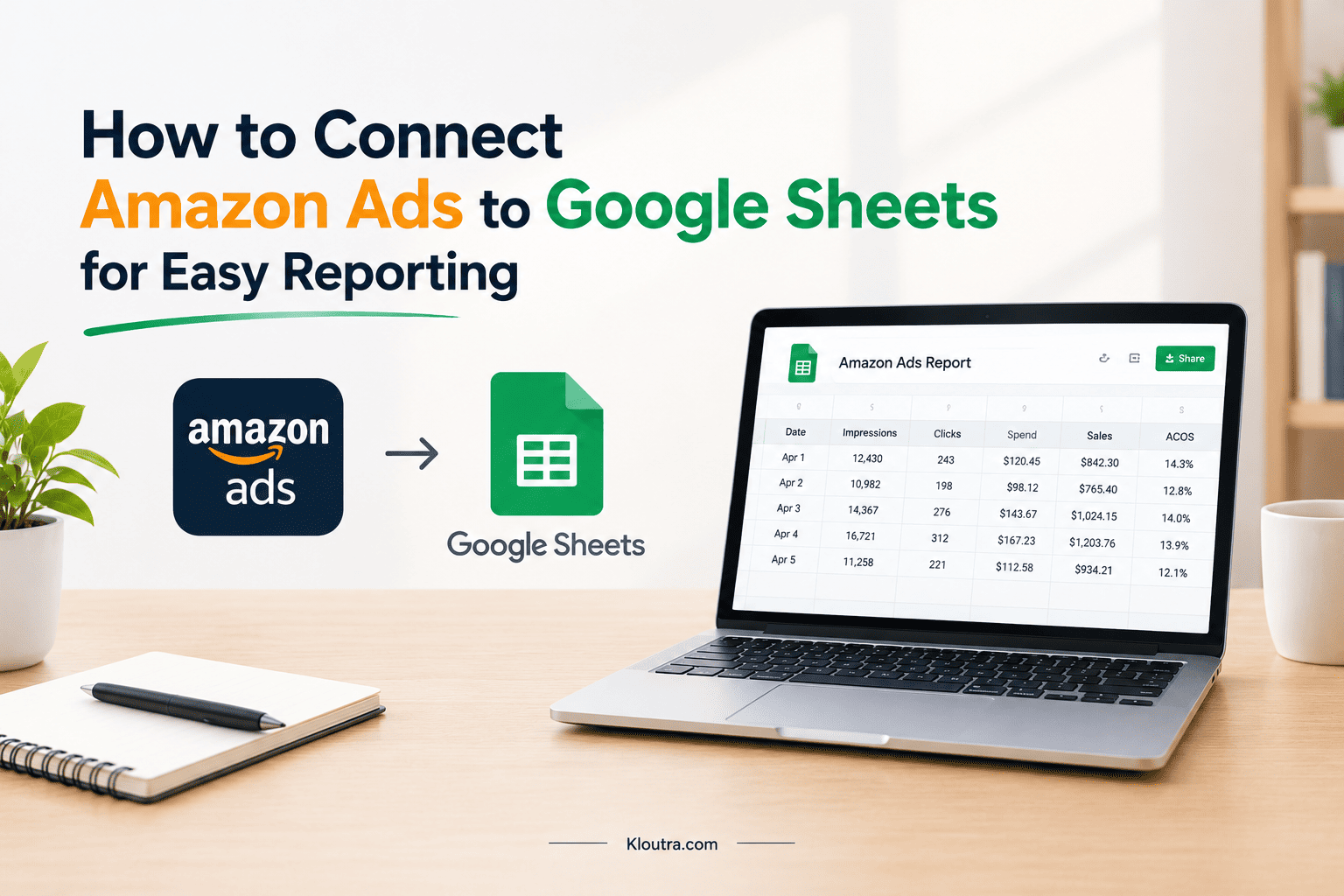
Managing Amazon Ads campaigns becomes easier when you can review all your data in one place. Connect Amazon Ads to Google Sheets to organize advertising reports and track campaign performance. You can monitor impressions, clicks, advertising costs, and attributed sales without switching between multiple reports. Google Sheets also helps you calculate important metrics like ACOS and ROAS.
These numbers show how your advertising spend compares with the sales generated. You can transfer data using third-party tools, the Amazon Ads API, or manual imports. Each method suits different budgets, skills, and reporting needs. This guide explains how to Connect Amazon Ads to Google Sheets and create useful reports for better campaign analysis.
What Does Connecting Amazon Ads to Google Sheets Mean?
Connecting Amazon Ads to Google Sheets means importing advertising data into a spreadsheet. You can use this data to review campaigns and track results. A third-party tool or API can help transfer the data. You can then organize it into tables, charts, and reports.
Benefits of Connecting Amazon Ads to Google Sheets
Automate Amazon Ads Reporting
Manual reporting takes time, especially when you manage multiple campaigns. An integration tool can import data automatically on a schedule. This reduces repeated copying and pasting. You can spend more time reviewing results and improving your campaigns.
Track Campaign Performance in One Place
Google Sheets lets you organize campaign data in one spreadsheet. You can compare clicks, impressions, spending, and attributed sales. You can also review different campaigns using filters and charts. This makes campaign performance easier to understand.
Analyze Advertising Costs and Sales
Google Sheets helps you compare advertising costs with attributed sales. You can calculate ACOS and ROAS using spreadsheet formulas. These metrics show how efficiently your ads generate sales. They can help you identify campaigns that need closer review. They can help you identify paid advertising campaigns that need closer review.
How to Connect Amazon Ads to Google Sheets
You can transfer Amazon Ads data into Google Sheets in several ways. The best method depends on your technical skills and reporting needs.
Method 1: Use a Third-Party Integration Tool
Third-party tools can transfer Amazon Ads data into Google Sheets. Examples include Coupler.io, Supermetrics, and Two Minute Reports. First, check whether the tool supports your Amazon Ads account and required reports.
- Create an account with your chosen integration tool.
- Connect your Amazon Ads account using its authorization process.
- Select the advertising data and reports you need.
- Choose Google Sheets as your destination.
- Select the spreadsheet where you want to store the data.
- Configure a refresh schedule if your plan supports it.
- Run the import and check the results.
The tool may require specific account permissions or a paid subscription.
Method 2: Connect Through the Amazon Ads API
The Amazon Ads API lets developers build custom reporting integrations. This method requires technical knowledge and approved API access.
- Check Amazon’s API requirements for your advertising account.
- Register an application and obtain the required authorization.
- Request the appropriate API permissions.
- Use the API to retrieve supported advertising reports.
- Process the returned data into spreadsheet-ready rows.
- Use Google Apps Script or another integration to update Google Sheets.
You must follow Amazon’s API requirements and reporting rules. Access depends on approval, account eligibility, and the required permissions.
Method 3: Import Amazon Ads Data Manually
Manual importing works well for occasional reports or small campaigns. You do not need an automated integration tool.
- Sign in to your Amazon Ads account.
- Open the reporting section available for your account.
- Create a report and select the required metrics.
- Set the reporting period and other available options.
- Generate and download the report when it becomes available.
- Open Google Sheets and create a spreadsheet.
- Use File → Import to upload the downloaded CSV file.
- Review the columns and confirm that the data appears correctly.
Repeat these steps whenever you need updated data. Manual imports do not refresh automatically.
Best Tools to Connect Amazon Ads to Google Sheets
You can use third-party tools or the Amazon Ads API to transfer advertising data. Each option suits different reporting needs and technical skills.
| Tool | Best For | Key Benefit |
|---|---|---|
| Coupler.io | Automated data imports | Supports scheduled data updates for supported sources. |
| Supermetrics | Marketing reporting | Imports Amazon Ads data into Google Sheets. |
| Two Minute Reports | PPC reporting | Supports Amazon Ads data and automated reports. |
| Amazon Ads API | Custom integrations | Lets developers build custom advertising data workflows. |
Which tool should you choose?
For a simple setup, consider Supermetrics or Two Minute Reports. Developers who need more control can use the Amazon Ads API. Check each tool’s current pricing, account requirements, and refresh limits before choosing. You can also explore more SaaS tools for reporting and automation
What Amazon Ads Data Can You Track in Google Sheets?
You can track several Amazon Ads metrics in Google Sheets. These metrics help you understand ad performance, costs, and sales.
| Metric | What It Shows |
|---|---|
| Impressions | How many times your ads appeared. |
| Clicks | How many times shoppers clicked your ads. |
| Spend | The amount spent on advertising. |
| Sales | Sales attributed to your ads. |
| ACOS | Advertising spend as a percentage of attributed sales. |
| ROAS | Attributed sales generated for each dollar spent on advertising. |
These metrics help you compare campaigns and identify areas for improvement.
How to Create an Amazon Ads Report in Google Sheets
Google Sheets helps you organize Amazon Ads data and review campaign performance. Follow these steps to create a simple report.
Organize Your Imported Data
Start by importing your Amazon Ads report into Google Sheets. Keep each metric in a separate column. Use clear headings, such as Campaign, Clicks, Spend, and Sales. Remove empty rows and check for missing values. Make sure each row represents the correct campaign or reporting period.
Add Formulas for ACOS and ROAS
You can use simple formulas to calculate ACOS and ROAS. First, check that your report includes advertising spend and attributed sales.
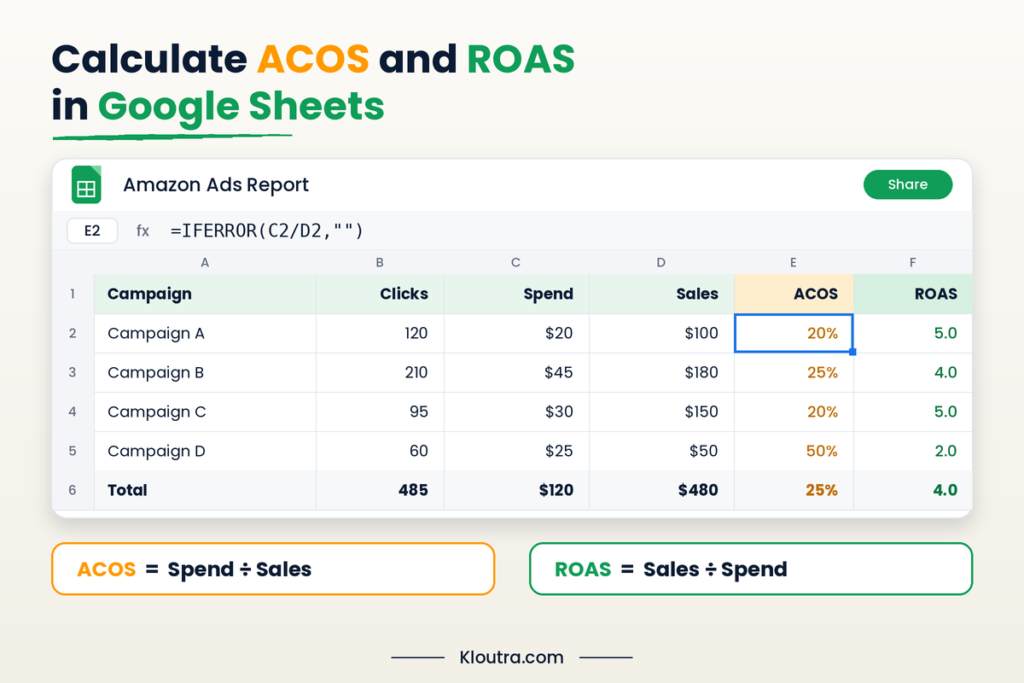
- ACOS: Divide advertising spend by attributed sales. Format the result as a percentage.
- ROAS: Divide attributed sales by advertising spend.
For example, if you spend $20 and generate $100 in attributed sales, your ACOS is 20%. Your ROAS is 5.
In Google Sheets, use these formulas if Spend is in column C and Sales is in column D:
- ACOS: =IFERROR(C2/D2,””) — format the cell as a percentage.
- ROAS: =IFERROR(D2/C2,””) — format the cell as a number.
These formulas return a blank cell when the denominator is zero, because the metric is undefined in that case. Check those rows separately.
Create Charts and Performance Summaries
Charts make campaign results easier to compare. Select your campaign names and the metrics you want to display. Then choose Insert → Chart in Google Sheets.
Use a bar chart to compare advertising spend across campaigns. A line chart can show performance changes over time. You can also add a summary table with total spend, attributed sales, ACOS, and ROAS.
Keep your charts simple and label each metric clearly. This helps you spot trends and compare campaign results.
How to Automate Amazon Ads Reports
You can automate Amazon Ads reporting with a supported integration tool. Learn more about reporting automation and how it saves time. This saves time and reduces manual data entry.
Schedule Automatic Data Updates
Many integration tools let you schedule data imports. First, connect your Amazon Ads account and Google Sheets. Select the reports and metrics you want to import. Then choose an available refresh schedule in your tool.
Your spreadsheet can update automatically according to that schedule. Availability and refresh frequency depend on the tool and subscription plan. Check the imported data regularly to catch missing or delayed updates.
Build a Campaign Performance Dashboard
A dashboard helps you review campaign results in one place. Use Google Sheets to summarize your imported advertising data.
Include these key metrics:
- Impressions: See how often your ads appeared.
- Clicks: Track how often shoppers clicked your ads.
- Spend: Monitor your advertising costs.
- Sales: Review sales attributed to your ads.
- ACOS: Compare advertising spend with attributed sales.
- ROAS: Measure attributed sales against advertising spend.
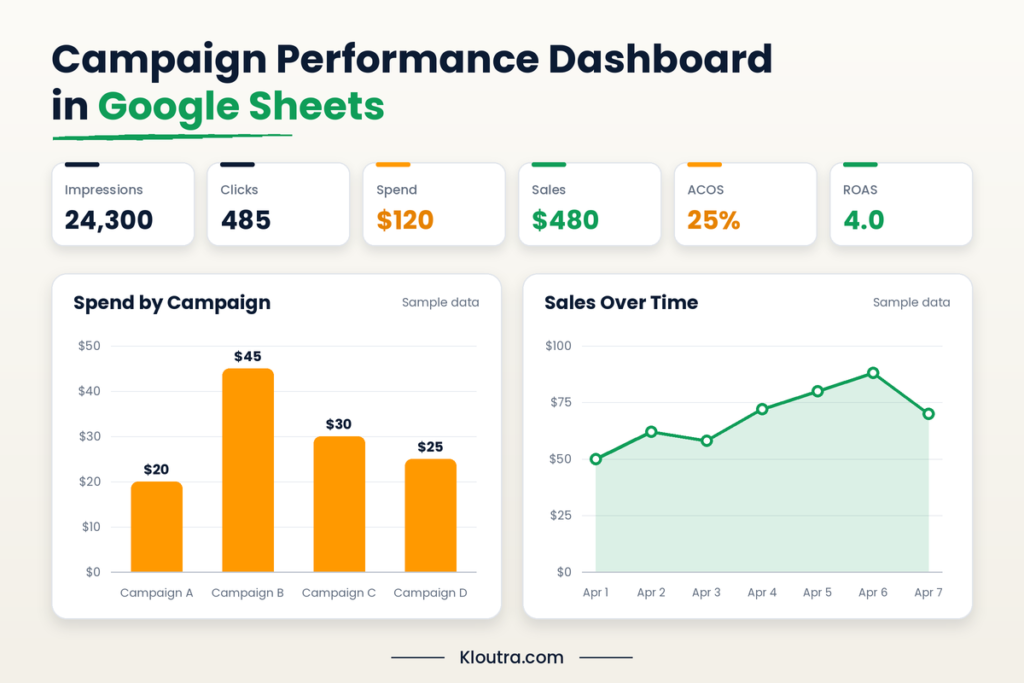
Use charts to compare campaigns and spot performance changes. Add date filters to review different reporting periods. Keep the layout simple so you can find important results quickly.
Common Problems When Connecting Amazon Ads to Google Sheets
Missing or Incomplete Data
Missing data can result from incorrect report settings or selected date ranges. Check your report filters and selected metrics. Also, confirm that your Amazon Ads account has data for that period. Some reports may not include every metric.
API Authorization and Access Issues
An API connection may fail because of missing permissions or expired authorization. Check your account access and reconnect the integration if needed. For custom API setups, confirm that your application has the required Amazon Ads API access.
Data Sync and Update Errors
Scheduled imports may fail because of connection problems or expired authorization. Check the integration tool’s error messages and reconnect your account when necessary. Also, confirm that your refresh schedule is active. Run the import again and verify the latest data.
Amazon Ads to Google Sheets: Which Method Should You Choose?
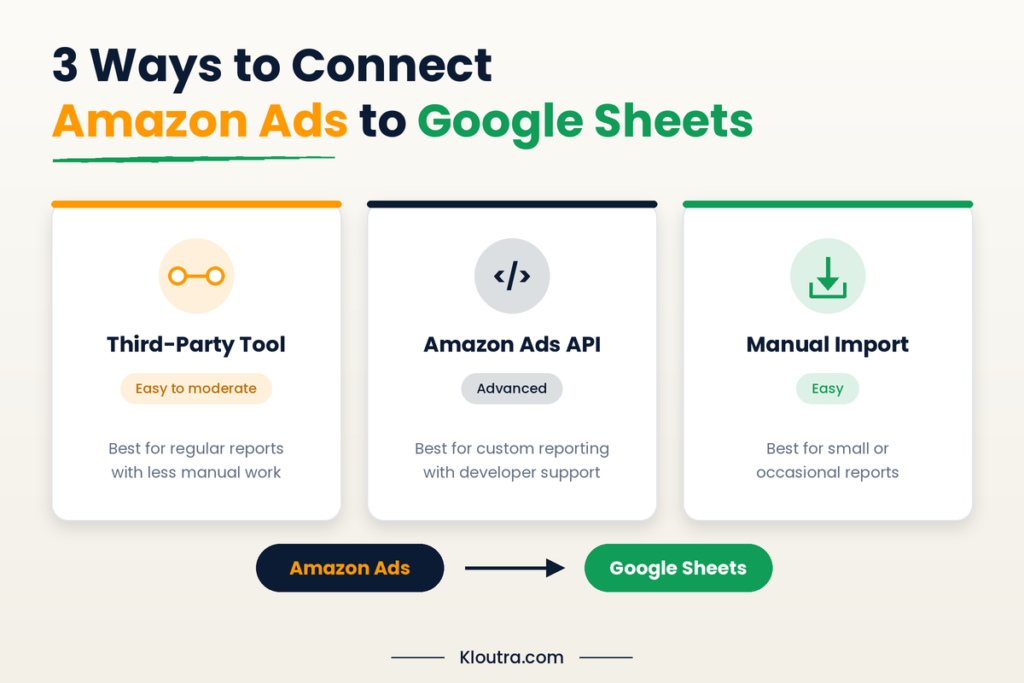
The best method depends on your skills, budget, and reporting needs.
| Method | Setup Difficulty | Best For |
|---|---|---|
| Third-party tool | Easy to moderate | Most advertisers who want automated reports |
| Amazon Ads API | Advanced | Developers who need custom reporting |
| Manual import | Easy | Small or occasional reports |
Choose a third-party tool if you want regular reports with less manual work. Use the Amazon Ads API if you need custom reports and have technical support. Choose manual imports if you only need reports occasionally.
Conclusion
Connecting Amazon Ads to Google Sheets makes campaign reporting easier and more organized. You can track clicks, impressions, advertising costs, sales, ACOS, and ROAS in one place. Third-party tools help automate reports, while the Amazon Ads API supports custom integrations. Manual imports work well for occasional reporting.
Choose the method that matches your budget, technical skills, and reporting needs. Check your data regularly to keep your reports accurate and useful. For more practical guides on marketing, AI, and SaaS, visit Kloutra
Frequently Asked Questions
Can You Connect Amazon Ads to Google Sheets for Free?
Yes, you can import Amazon Ads reports manually without paying for an integration tool. However, custom development or third-party tools may cost money. Check Amazon’s current API terms for any fees.
Does Amazon Ads Have a Direct Google Sheets Integration?
Amazon Ads does not offer a standard, built-in Google Sheets connection. You can use third-party tools, the Amazon Ads API, or manual imports.
How Often Can Amazon Ads Data Update in Google Sheets?
Update frequency depends on your chosen method and integration tool. Manual imports require you to upload new reports yourself. Some third-party tools support scheduled updates, depending on their plans and settings.
Can I Track ACOS and ROAS in Google Sheets?
Yes, you can calculate both metrics using spreadsheet formulas. ACOS divides advertising spend by attributed sales. ROAS divides attributed sales by advertising spend. Format ACOS as a percentage and ROAS as a number.
Disclaimer: This guide provides general information about connecting Amazon Ads to Google Sheets. Features and costs may change. Always verify your data and check tool requirements before making advertising decisions.