Native Format: Meaning, Examples & How It Works
Introduction
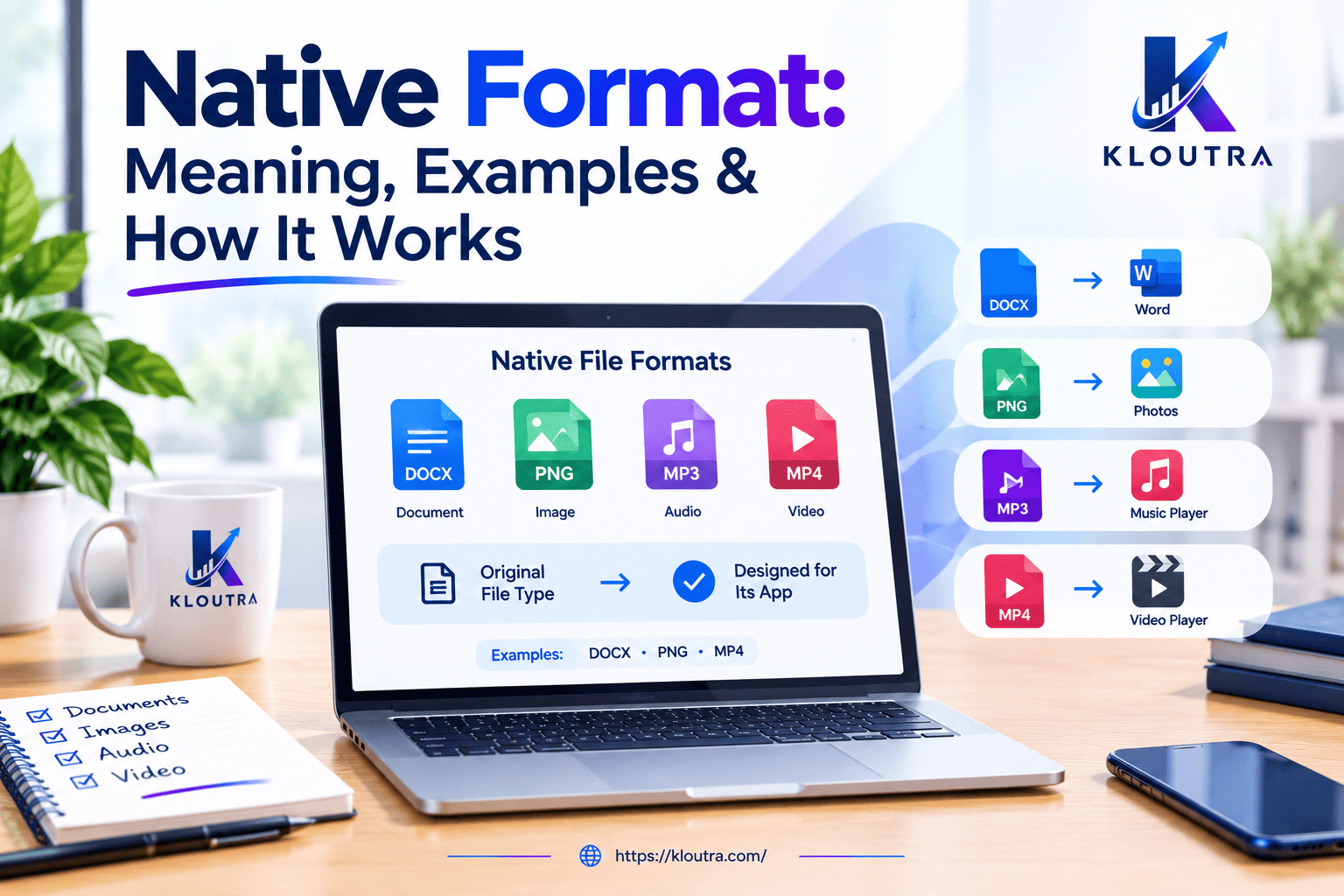
Understanding file types helps you choose the right format for different tasks. Native Format refers to the original file format that a software application uses to create and save its work. It often preserves important details, such as layers, editing options, and project settings. Different applications support different native formats, depending on their purpose and features.
For example, Photoshop uses PSD files, while Blender saves projects in BLEND format. Knowing how Native Format works can help you manage files more effectively. This guide explains Native Format, explores common examples, and compares it with other file formats to help you make informed decisions.
What Is Native Format?
A native format is the file format that an application uses to save its work. It often stores information that other formats may not support. Different applications use different native formats for their projects. For example, Adobe Photoshop uses PSD files for image editing. Blender uses BLEND files to save 3D projects. These formats can preserve editing details for future changes. However, their features depend on the application and file type. Understanding native formats helps you choose the right files for different tasks. Many of these formats are used in apps and software for design, video, and documents.
What Does Native Format Mean?
Native format means a file format designed for a particular software application. It allows the application to save and reopen its work. Some native formats store more than the finished content. They can also preserve layers, objects, settings, and other editable details. For example, a Photoshop PSD file can store separate image layers. This makes it easier to edit individual elements later. However, not every native format supports the same features. The information stored depends on the software and its file format.
Why Is It Called a Native Format?
The term describes a format that belongs to an application’s normal workflow. The software creates, opens, or edits files using that format. For example, Blender saves projects in its native BLEND format. This format can store objects, materials, scenes, and other project information. Another application might not support every part of that file. Some programs may open the file with limited features. Others may not open it at all. That is why native formats often work best with compatible software.
How Does Native Format Work?
Native formats work through the features built into software applications. When you save a project, the application stores information in its supported format. The saved file can then reopen in compatible software. The application reads the stored data and rebuilds the project. You can continue editing if the file preserves those details. The exact process depends on the software and format. Some files store simple document content. Others contain complex data, settings, and linked resources.
How Software Creates and Saves Native Files
When you create a project, the application keeps its content and settings. Clicking Save tells the software to store that information in a file. The application organizes the data according to its file format. When you open the file again, compatible software reads that data. It restores the content and supported editing features. For example, a design program may save shapes, colors, and text separately. A video editor may store clips, timelines, and project settings. These details help you continue working without starting over.
How Native Formats Preserve Editing Information
Many native formats preserve details that support future editing. Image files may store layers, masks, and editable text. Design files may retain shapes, objects, and their properties. Video project files may store timelines, clip positions, and editing settings. These details let you change specific parts without rebuilding everything. However, not every native format preserves all editing information. Some applications save only selected features or flatten certain elements. Exporting a project can also remove editable details. Always check the format’s features before choosing how to save your work.
Common Native Format Examples
Different software applications use different file formats to save their work. These formats help users reopen files and continue editing. Some formats store text, while others store images or complex projects. Knowing these examples makes native formats easier to understand.
Native Formats for Documents and Spreadsheets
Document and spreadsheet applications use formats that preserve content and editing features. Microsoft Word saves documents in DOCX format by default. This format can store text, images, tables, and document formatting. Microsoft Excel uses XLSX for most modern spreadsheet files. It can store worksheets, formulas, charts, and cell formatting. These formats help users update documents and spreadsheets later. However, other applications may support these files with different levels of compatibility.
Native Formats for Images and Design
Design applications often use formats that preserve editable elements. Adobe Photoshop uses PSD to store images and supported editing details. These files can contain layers, masks, and other image information. Adobe Illustrator uses AI for vector graphics and design projects. The format can preserve editable paths, shapes, and text. AutoCAD commonly uses DWG for technical drawings and design data. Blender uses BLEND files to save 3D scenes and project settings. These formats help designers continue working without rebuilding their projects.
Native Formats for Audio and Video
Audio and video applications use formats suited to their editing workflows. Some store complete projects, while others store finished media. For example, a video project may contain clips, timelines, and editing settings. Final Cut Pro uses library files that commonly have the FCPBUNDLE extension. These libraries can contain projects, events, and associated media. The actual media may also remain in external locations. Audio applications may use their own project formats to store tracks and effects. Such files help users make changes before exporting finished audio or video. To learn how audio content appears and works online, read this guide on audiodisplayed meaning.
Common Native Format Examples

| Software | Native File Format | Typical Use |
|---|---|---|
| Microsoft Word | DOCX | Creating and editing text documents |
| Microsoft Excel | XLSX | Managing spreadsheets, formulas, and charts |
| Adobe Photoshop | PSD | Editing layered images |
| Adobe Illustrator | AI | Creating and editing vector graphics |
| AutoCAD | DWG | Creating technical drawings |
| Blender | BLEND | Saving 3D scenes and projects |
| Final Cut Pro | FCPBUNDLE | Storing video-editing libraries and projects |
Note: These are common formats used by the listed applications. Some applications support additional formats and file extensions. Final Cut Pro uses library bundles with the .fcpbundle extension. A library can contain multiple projects, events, and media files. Native format features can also vary between software versions.
Native Format vs. Standard File Format
Native formats and standard file formats serve different purposes. A native format usually works best with its associated software. It may preserve layers, objects, settings, and other editable details. A standard file format often helps people share information across applications. However, these categories can overlap. Some native formats work with several programs, while standard formats can also support editing. The best choice depends on your task and software.
For example, PSD files preserve Photoshop layers and other editing details. When sharing files between different systems, understanding advanced file transfer can help you learn how files move between systems. PNG files are useful for sharing images with transparent backgrounds. PDF files help people share documents across different devices and applications. CSV files store tabular data as plain text. They do not preserve spreadsheet features like formulas or cell formatting. Therefore, choose a format based on your editing and sharing needs.
Native Format vs. Standard File Format
| Feature | Native Format | Common Exchange Format |
|---|---|---|
| Main purpose | Saving and editing software projects | Sharing or transferring information |
| Editing features | May preserve layers and project settings | Depends on the format |
| Compatibility | May require compatible software | Often works across different applications |
| Examples | PSD, AI, BLEND | PDF, PNG, CSV |
| Best use | Continuing work on a project | Sharing, publishing, or transferring content |
Remember that not every native format is exclusive to one application. Likewise, not every exchange format supports every type of content. For example, PDF files can contain interactive elements and editable form fields. PNG files preserve image pixels and transparency, but not Photoshop layers. CSV files store table data, but not spreadsheet formulas or formatting. Always check the format’s features before choosing it.
Benefits of Using Native File Formats
Native file formats offer several benefits when you work on digital projects. They often preserve details that help you edit your work later. For example, Photoshop PSD files can store layers, masks, and adjustments. You can change individual elements without rebuilding the entire image. Some native formats also save project settings and editable objects. This helps designers, video editors, and other professionals manage complex projects. Native files can also reduce the need to recreate earlier work. However, their benefits depend on the software and format you use.
Another benefit is easier project management within compatible applications. You can reopen a saved project and continue from where you stopped. Some formats also preserve links between project elements and resources. This can help you organize larger projects. However, linked files may still need separate storage. Native formats are most useful when you expect to make future changes.
Limitations of Native Formats
Native formats also have some limitations. Certain files require specific software to open or edit properly. Other applications may support only part of their features. This can create problems when you share projects with other people. Some formats may also change between software versions. Older applications might not support newer features. In some cases, you may need to convert files before sharing them.
Native project files can also contain extra editing information. This may make them larger than exported files. For example, a layered image can take more space than a flattened image. Large project files may take longer to transfer or store. Some files also depend on external fonts, media, or linked resources. Keeping backups can help protect your work, and granular recovery technology shows how individual files can be restored without recovering everything. Exporting a suitable copy can also improve compatibility.
Native Format vs. Exported Format
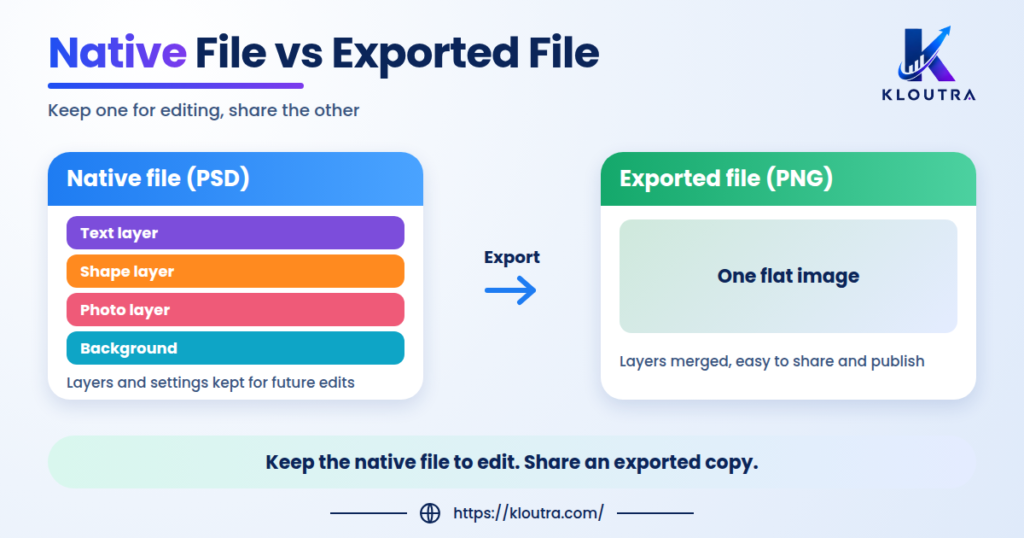
A native file usually stores a project in its editable form. An exported file presents content in another selected format. For example, Photoshop can save an image as PSD or export it as PNG. The PSD file can preserve layers for future editing. The PNG file stores the resulting image, including supported transparency. It does not preserve Photoshop layers as separate editable elements.
Exported files often make sharing and publishing easier. Many devices and applications can open common formats like PNG and JPEG. However, exporting may remove some project details. The exact result depends on the chosen format and export settings. Some formats also support editing, so exported files are not always final or uneditable. Keep the native file when you expect further changes. Use an exported copy when you need a suitable format for sharing.
Native Files vs. Exported Files
| Factor | Native File | Exported File |
|---|---|---|
| Editing | Often preserves project-level editing features | Depends on the chosen format |
| Layers and settings | May retain layers and project settings | May flatten or remove editing details |
| Sharing | May need compatible software | Often easier to share |
| Main purpose | Continuing work on a project | Sharing, publishing, or further processing |
| Examples | Photoshop PSD | PNG or JPEG |
Remember that exporting does not always remove every editing feature. Some formats preserve layers, metadata, or other useful information. Always check the export settings before saving your final copy.
When Should You Use a Native Format?
You should use a native format when you plan to edit your work later. It helps preserve project details that other formats might not support. For example, designers can keep Photoshop files with separate image layers. Video editors can save projects with timelines and editing settings. Spreadsheet users can keep formulas and cell formatting in XLSX files. These features make future changes easier.
Native formats also work well when you manage complex projects. They help you return to unfinished work without starting from scratch. However, you should check software compatibility before sharing native files. Some people may not have the required application. In that case, export a copy into a suitable format. Keep the native file for future edits and share the exported copy when needed. Large files can be sent easily with tools like WeTransfer.
Frequently Asked Questions
What Is a Native Format?
A native format is the file format used by an application to save its work. It can preserve editing details, settings, and project information. For example, Photoshop uses PSD files for layered image projects.
What Does Produced in Native Format Mean?
Produced in native format means a file was created or saved using its original application format. This format may preserve features needed for further editing. Native files are also important in digital investigations, where computer examiners review original files and their details. For example, a designer may deliver an editable AI file created in Adobe Illustrator
What Is a Native PDF Format?
PDF is a standard file format, not a single application’s native format. A program can create and save PDFs using its own tools. A PDF can preserve text, images, fonts, and page layouts. Some PDFs also support forms, links, and other interactive features. However, a PDF does not automatically preserve the original project’s editing structure.
What Does “Native Data” Mean?
Native data means information stored or handled in its original form within a particular system. The exact meaning depends on the context. In software, it may refer to data stored in an application’s own format. In other fields, it can describe data collected directly from its original source. Always consider the context to understand what native data means.
Conclusion
Native formats help you save and edit files in their original applications. They often preserve layers, settings, and other project details. However, some files need specific software to open or edit. Choose a native format when you plan to make future changes. Use exported formats when you need to share files easily. Keeping both versions can help protect your work and simplify file sharing. For more simple guides on technology, apps, and digital tools, visit Kloutra.
Disclaimer: This article provides general information about native file formats and their uses. Features and compatibility may vary by software, file format, and version. Always check the official software documentation for specific requirements before converting, sharing, or editing files.

Related Posts

Certified Computer Examiner: Role, Skills & Certification

RCA Tablet Serial Number: How to Find It